

Canvas
Philosophy Canvas lectures and classes have been divided into the following Canvas courses:
Philosophy Mods/Prelims Classes, Philosophy FHS Classes, Philosophy Graduate Classes and Philosophy Other Events.
These courses will appear in your 'Dashboard' when you have been given access to them via a Canvas invite (see image below).
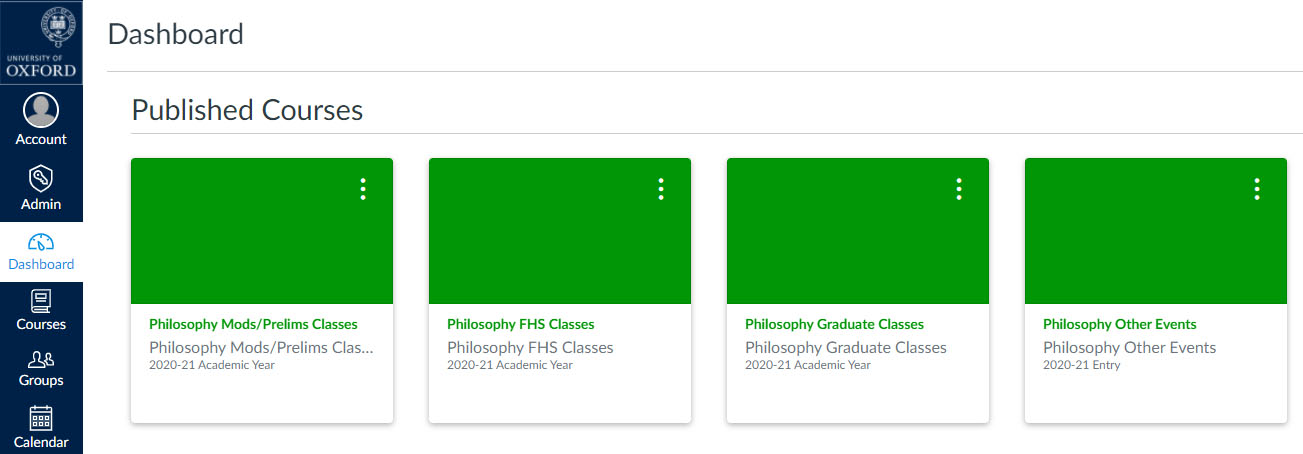
Lecturers and class givers will make lecture materials available either all at once or week by week. Do check individual pages for further information.
When you are given access, you will receive an automated invite from Canvas to join the relevant course. Please log in to Canvas and accept the invite.
Guidance for Lecturers and Class Givers
Uploading to Canvas
- How to add content file (PDF)
- How to place content on page (PDF)
- How to move Panopto recording from 'My Folder' to the course folder (PDF)
- How to turn Download off (PDF)
- How to create a Playlist (PDF)
- How to paste a meeting link on your course page (PDF)
MS Teams
(https://help.it.ox.ac.uk/nexus365/teams-how-do-i)
For classes and lectures given via MS Teams meetings, links to those meetings should be made available via the relevant Canvas page by the class/lecture giver.
- How to create a meeting for your lecture/class in MS Teams (PDF)
- How to create a meeting for your lecture/class in Outlook (PDF)
If you would like a dedicated Team for your lecture/class, then members of staff can Request a New Team by completing the online form in IT Services' self service portal (SSO required).
Recording and sharing Microsoft Teams meetings
Using MS Teams to record, MS Stream to edit, and Canvas to share recordings
Guidance for Students
Panopto Recordings
Once you have accepted the invite, please can we ask that you then click on the blue 'Panopto Recordings' link in the main navigation on the left, before doing anything else. This will activate your access to Panopto Recordings for this course. If you do not do this step, recordings may not be available or access maybe denied. You will only have to do this once in each course (above) that you access.
MS Teams
For classes and lectures given via MS Teams meetings, links to those meetings will be made available via the relevant Canvas page by the class/lecture giver. Please make sure you have the MS Teams app downloaded and installed, as this is the recommended way to access a Teams meeting.